October 31, 2006
Keyboard Shortcuts - Try Them
Some things you can do faster by learning a few strategic keyboard shortcuts. Select something (a file, a word, a paragraph) and copy it, using [Ctrl]+[C]. Using these keys on your keyboard copies the object you selected to the clip board (to the computer memory, if you like). Then, when you are ready to paste the object somewhere else into your work use [Ctrl]+[V] and the object appears where you placed your cursor. It'll become second nature when you see how convenient this is. Microsoft lists keyboard shortcuts... very convenient.
The best of all is the shortcut that minimizes (not closes) all of your open windows at once: [Windows key]+[M]. That's a great trick, it prevents a nosy visitor to look over your shoulder and see what's on your screen. Very, very convenient!
The best of all is the shortcut that minimizes (not closes) all of your open windows at once: [Windows key]+[M]. That's a great trick, it prevents a nosy visitor to look over your shoulder and see what's on your screen. Very, very convenient!

October 20, 2006
Resizing Pictures Proportionately...
You want to put some pictures into a document but they are too big. You know that you can resize them but how do they 'keep their shape'? To resize a picture you should see the 'handles'. They appear, for instance, when you click on an image in MS Word.

You can put your cursor on a handle and push or pull vertically, horizontally and diagonally.

When you pull a handle horizontally the picture gets distorted (and the world is suddenly oval)...

Or, when you pull a handle vertically, the picture gets distorted (and the world is suddenly egg-shaped)...

But, when you drag a corner handle and put your finger on the Shift key on your keyboard at the same time, the image resizes proportionately. Make it bigger (see the pitfalls of that in the previous post)...

Or make it smaller. It's not rocket science.
October 15, 2006
Screen resolution vs. print resolution
This is a primer about digital picture taking and saving habits you should get into. The subject can be pretty complex so I won't be explaining every little thing, I'll be linking to some sources that explain more... (I am talking to those who are having fun with their digital camera and want some good results for their memories. The digital SLR afficionado, or the RAW picture taker can probably skip this.)
1) Take your pictures at the highest resolution your camera offers at all times. Using film you didn't have to think about resolution, you got a good print of a good or bad picture. With high resolution digital pictures you also get a good print of a good or bad picture. But if you take a picture at a very low resolution you just get a bad, tiny print of a good or bad picture.
2) Don't change the resolution settings to take pictures because you are running out of room on your memory card. Get a larger memory card, or a second one. They are reusable and almost never wear out, it's like having extra film.
3) Download your pictures regularly to your computer or directly onto a CD (picture processing places offer this service). Always backup your original pictures to a CD (or DVD) before you do anything else. This keeps your originals safe, they are like negatives. If you have a year's worth of pictures on your hard drive and no backup, get a stack of CDs and do it today, back them up!
4) Now you can decide what you want to do with a picture. You can mess around with it and if you mess up, you can go back and start again with the original on your CD.


If you would like to learn more about print/screen resolution here is a pretty detailed article.
1) Take your pictures at the highest resolution your camera offers at all times. Using film you didn't have to think about resolution, you got a good print of a good or bad picture. With high resolution digital pictures you also get a good print of a good or bad picture. But if you take a picture at a very low resolution you just get a bad, tiny print of a good or bad picture.
2) Don't change the resolution settings to take pictures because you are running out of room on your memory card. Get a larger memory card, or a second one. They are reusable and almost never wear out, it's like having extra film.
3) Download your pictures regularly to your computer or directly onto a CD (picture processing places offer this service). Always backup your original pictures to a CD (or DVD) before you do anything else. This keeps your originals safe, they are like negatives. If you have a year's worth of pictures on your hard drive and no backup, get a stack of CDs and do it today, back them up!
4) Now you can decide what you want to do with a picture. You can mess around with it and if you mess up, you can go back and start again with the original on your CD.
PICTURES ALWAYS LOOK GREAT ON A SCREEN! But will they print?
If you would like to learn more about print/screen resolution here is a pretty detailed article.
October 11, 2006
Is this legit? Or is it spam?
That seems to be unclear still to a lot of people. Let me tell you up front... Everybody gets spam... Everybody! Spam, in case you haven't heard, is unsolicited email. A few years ago it was unsolicited mail that clogged up our mailbox, today it's unsolicited email that clogs up our inbox.
I hope it has filtered through by now that you should never, NEVER, respond to spam! Don't even click on a link in a spam email, it may bring you to a site that looks innocent enough but downloads, without you knowing, spyware, malware, nasty stuff you don't want on your computer (it could lead to identity-theft and more).
It boggles my mind when I hear how often people get taken with blatant, not even well disguised internet scams. Some scams do look legit. If you heed the advice above, to NEVER respond to any spam email, you don't have to worry. But especially make sure that you NEVER believe that a legitimate financial institution would ever ask you for your access password or credit card number, or debit card pin number, via an unsolicited email, even if a legitimate looking logo decorates the page.
You don't have to be paranoid, just use your head, your common sense. If you are tempted to follow up on any unsolicited spam email, then double- and triple-check the background of the senders, the product, the service, the miracle that is promised, before you go on a 'clicking trip'. One of many good sources to do that with is Scam Busters. Or use the search words: 'internet scams' in your google bar and you can read up on it for weeks.
What, you don't have a google bar? Get one, get the whole pack! Check out some of the practical things you can do to not become a spam magnet.
I hope it has filtered through by now that you should never, NEVER, respond to spam! Don't even click on a link in a spam email, it may bring you to a site that looks innocent enough but downloads, without you knowing, spyware, malware, nasty stuff you don't want on your computer (it could lead to identity-theft and more).
It boggles my mind when I hear how often people get taken with blatant, not even well disguised internet scams. Some scams do look legit. If you heed the advice above, to NEVER respond to any spam email, you don't have to worry. But especially make sure that you NEVER believe that a legitimate financial institution would ever ask you for your access password or credit card number, or debit card pin number, via an unsolicited email, even if a legitimate looking logo decorates the page.
You don't have to be paranoid, just use your head, your common sense. If you are tempted to follow up on any unsolicited spam email, then double- and triple-check the background of the senders, the product, the service, the miracle that is promised, before you go on a 'clicking trip'. One of many good sources to do that with is Scam Busters. Or use the search words: 'internet scams' in your google bar and you can read up on it for weeks.
What, you don't have a google bar? Get one, get the whole pack! Check out some of the practical things you can do to not become a spam magnet.
October 03, 2006
A computer is not a typewriter...
But you knew that, didn't you? Of course you did! You are not still pressing 'Enter' at the end of each line, right?
So, why do you still make a double-space after each fullstop (.)?
Did you know that if you are writing text for a web page, the second space is not recognized? Or that this double-space can create havoc with the formatting of an electronic document? Oh, there are always exceptions, but just get with it and drop those very old fashioned typing habits.
Why am I writing about something that obvious? Well, every time I come across something at work, or someone asks me questions that seem terribly obvious to me but are not for them, I write about it here.
So, why do you still make a double-space after each fullstop (.)?
Did you know that if you are writing text for a web page, the second space is not recognized? Or that this double-space can create havoc with the formatting of an electronic document? Oh, there are always exceptions, but just get with it and drop those very old fashioned typing habits.
Why am I writing about something that obvious? Well, every time I come across something at work, or someone asks me questions that seem terribly obvious to me but are not for them, I write about it here.
October 02, 2006
Right-click! Experiment!
Yes, use your mouse better and start right-clicking on things. If you are not in the habit of doing that you are missing a lot of convenient help at the (right-)click of a mouse!
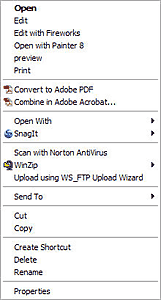 Start now. Say you are looking at an image file (a picture), say it's called img10023.jpg, right out of your camera, right-click on the file name. The menu that pops up shows you what you can do with the file. In the menu there is probably an option to 'open with', 'edit with [photo editing software]', 'cut', 'copy', 'delete', print, or 'rename' the file. So one right-click shows you right there, what you can do with the object (=file). That goes for all objects on your screen. Right-click on everything, you'll learn a lot in a short time.
On the left is an example, some of the menu options will not apply to you, because your computer would have different software installed.
With learning come mistakes. So one other indispensible keyboard shortcut you need to know by heart is: 'Ctrl + Z' for 'UNDO'. What would we do without 'undo'?
Start now. Say you are looking at an image file (a picture), say it's called img10023.jpg, right out of your camera, right-click on the file name. The menu that pops up shows you what you can do with the file. In the menu there is probably an option to 'open with', 'edit with [photo editing software]', 'cut', 'copy', 'delete', print, or 'rename' the file. So one right-click shows you right there, what you can do with the object (=file). That goes for all objects on your screen. Right-click on everything, you'll learn a lot in a short time.On the left is an example, some of the menu options will not apply to you, because your computer would have different software installed.
With learning come mistakes. So one other indispensible keyboard shortcut you need to know by heart is: 'Ctrl + Z' for 'UNDO'. What would we do without 'undo'?

